Share this blog!

Internship diaries #2


By the start of the second four-week period, the static web simulation of the Data Mapper tool was achieved by using JS Plumb but when the it required long codes to get the functionality work. Therefore, my mentor discussed with the other team members on an appropriate library to work on in a long term basis and came up to a conclusion on using d3. D3 is a simple yet powerful JavaScript library that provides many useful functionalities in handling document objects.

I was going through a tutorial on creating a bar chart using d3 and met with a a series of similar bugs. Looking into the matter by debugging, I found out that the cause of the bugs were version mismatches. I was using the latest version(v4) in my implementation while the tutorials I was going through were based on a previous version(v3). In order to recover from the bugs, I had to look into the details of version updates, and to my surprise there were quite a long list of structural changes in the version update.

The Data Mapper implementation using d3 started and in the mean time, I was researching on other similar JS libraries such as Jquery, Jquery-UI, AngularJS, NodeJS, BackboneJS and worked on sample projects through tutorials. I hadn’t even heard of some of them before. Additionally, I had to go through HTML SVG components as a majority of D3’s drawings were based on SVG.


The use cases of the JS based Data Mapper were:

  1. File loading
  2. XML parsing
  3. Displaying tree structure
  4. Implementing draggable containers
  5. Implementing draggable nodes 
  6. Detecting node drops.  

Implementation of file loading and XML parsing were reused from the earlier implementation using jsPlumb. Tree structure display was achieved by using a recursive method on which the node dragging functionality was implemented using D3’s drag functionality. The node drops were detected by using a method that calculates the areas of the leaf nodes of the opposite container.

Enabling dragging on containers was the trickiest objective which gave me an opportunity to learn about D3’s mouse events. During line dragging, the positions were calculated using mouse pointer position and the transform:translate attributes of the containers. I was practically living inside StackOverflow. After going through so much trouble, the container dragging functionality was finally solved. And it was time for a new task...


The above topic kept me busy for an exhausting dozen of hours when I wan trying to implement a simple dragging functionality. Basically the components I had were two SVG groups, one called input and the other, output and some lines connecting them. The mapping functionality had been achieved earlier in this post, and the new requirement was to make each container draggable.

The problem:


At first I tried to use d3.event.x and d3.event.y to update the x attribute of the component. As in:

var drag = d3.drag().on("drag", function() {
                   var x = d3.event.x;
                   var y = d3.event.y;
                   d3.select(this).attr("transform", "translate(" + x + "," + y + ")");
                   });


In the that approach, the lines were appended to whichever the container the drag was started from, therefore there was the possibility of lines belonging to both the containers. The observations were that the drag was not smooth and the target ends of the lines that were belonging to the dragged container were not updated (obviously!)

When I was looking into the details of making the drag smooth, I came up with multiple event handlers that could be used.


d3.event vs d3.mouse


d3.event and d3.mouse are two important events defined by d3. The main difference between these two is that d3.event is browser-dependent while d3.mouse is not.

mbostock in StackOverflow responded to this question saying that:

Instead of using d3.event, which is the browser's native event, use d3.mouse to get the coordinates relative to some container.

d3.event.pageX and d3.event.pageY


pageX and pageY belong to d3.event and therefore are native to browser’s implementation.

Further more, Lars says in this that:

pageX and pageY are the event's native properties, which are browser-dependent (as you've discovered). These properties depend on the implementation of the rendering engine. In theory, they're specified in a W3C standard, but in practice the implementations don't necessarily conform to that standard.

d3.event.dx and d3.event.dy


Ultimately, my solution for a smooth drag was using d3.event.dx and d3.event.dy which return the delta values of the mouse movement.

In the words of Naga on this post:

d3.event.dx returns the x delta that the mouse has moved w.r.t to the x-coordinate from where the drag event started.


The final solution:


Finally my container dragging functionality gave out smooth results as:

var drag = d3.drag().on("drag", function() {
  this.x = this.x || 0;
  this.y = this.y || 0;
  this.x += d3.event.dx;
  this.y += d3.event.dy;
  d3.select(this).attr("transform", "translate(" + this.x + "," + this.y + ")");
  });


The working full code relevant for this functionality can be found stuffed up in my Github commit.
In the earlier post, element dragging functionality using d3 was demonstrated and this post demonstrates how it can be extended to work as a simple mapping tool similar to the one that was implemented using jsPlumb.

Earlier, the data array was used only for reading, and the positions of the elements such as rectangle, the dots and the text were calculated manually. In the following, we will be updating the data set by adding new values such as position details and dimensions, so that each of the elements corresponding to one object of the data array, have attributes that are relative to each other. In simpler words, we are mapping one object to a set comprising of a rectangle, a text, 2 dots and a line.


Further more, the dragging functionality is updated to detect if it has entered a node on the opposite side. If yes, the end will be attached to the dot on the corresponding node or the end will be removed.

The working application:


The code gist is as follows:
In this post d3 is used to draw a stack of SVG rectangles based on a set of defined values such as starting position, vertical margin and an array of data. For each rectangle a dot is attached, which can be extended by a line by dragging.

The variables used are as follows:


The working application:


Dragging is achieved by d3's drag function as follows:
 
var dragme = d3.drag()
                .on("start", function (d) {
                    //when dragging starts
                })
                .on("drag", function () {
                    //during dragging
                })
                .on("end", function (d) {
                    //code to run when the drag is released
                });


The code gist is as follows:
 D3.js is a JavaScript library for manipulating documents based on data. - quoted from https://d3js.org

This post is on how to display a simple bar chart using HTML div elements and d3 JavaScript library. 


data.tsv is the data file we are going to use which has tab separated values (tsv) and header values. Similar to tsv, csv stands for comma separated values which acts similar to tsv files.

When running this however, in certain browsers, simply opening the html file is not sufficient since d3 makes AJAX requests for data. Therefore, the file must be loaded through a web server.

✔ Python users have a simple way to run a web server on the local machine by simply opening the terminal in the file's directory and executing the following command.

python -m SimpleHTTPServer

Once the server is started, simply open the html file using the server.

Eg: http://127.0.0.1:8000/barchartexample.html

This article presents more information on python's simple server.

✔ Or online editors such as Plunker too can be used.

This question on StackOverflow focuses on the file loading problem.

The following is a self explaining code gist relevant to the above displayed bar chart.

Internship diaries #1


This is the first of my monthly diaries of my internship experience at WSO2 Lanka (Pvt) Ltd.

An orientation session was carried out in the first week where we were introduced to the company hierarchy, organizational levels, rules and ethics, the products of the company and the resources available to use which can be used to improve our knowledge on the technical aspects. I personally find the culture of the company uniquely interesting where each employer is free from strict rules but everybody is genuinely passionate about what they are doing.

The products of WSO2 are open-source and they are based on the carbon kernel which serves as the core of each product. Components are integrated with the core to develop features. A product is basically a set of features assembled together to achieve a single or a set of specified functionalities.

In the first two days of the second week, project demonstrations were held from which we were asked to list our preferences. I selected the project named “Developing a data mapping tool plugin for VSCode” which was under team Developer Studio. My assigned mentor is Mr. Jasintha Dassanayaka. For the rest of the second week, I had a hands-on experience with the data mapping tool plugin for Eclipse.

The third week was spent on analyzing the source code of the data mapping plugin tool for Eclipse. The main features analyzed were the objects, their interactions, method calling sequences, file loading implementations and schema saving implementations.

The fourth week was spent on developing a static web app for data mapping tool using JavaScript. The implementations of file drag and drop, XML file parsing and the mapping functionality were mainly focused and completed successfully. To implement the mapping functionality, many libraries such as GoJS, jqTree, jsPlumb were researched but used jsPlumb due to the abundance of tutorials and community forums.

The problems faced during this period were overcome by the support of my mentor and on-line resources such as StackOverflow.


Left element 1
Left element 2
Left element 3
Left element 4
Left element 5
Right element 1
Right element 2
Right element 3
Right element 4
Right element 5


The code gist is as follows:

How to view login information

Basically Ubuntu saves all the log information in a log file inside /var/log/auth.log which you can access manually or use the following command in the terminal.

sudo less /var/log/auth.log 


How to disable guest login


In the file /etc/lightdm/lightdm.conf add the following line

allow-guest=false

If you are using a newer version of Ubunutu, try the file /usr/share/lightdm/lightdm.conf.d.


Make sure to restart the system to take effect.

In order to allow guest login again, remove the code line from the file.


Basically, what we are going to do is to install the developer studio kernel and the platform bundles without installing the tooling. Additionally, the GMF features and EMF SDK too must be installed.

Help->Install new software->Add and specify the location for platform bundles which will automatically add the kernel too. Proceed with the installation steps.

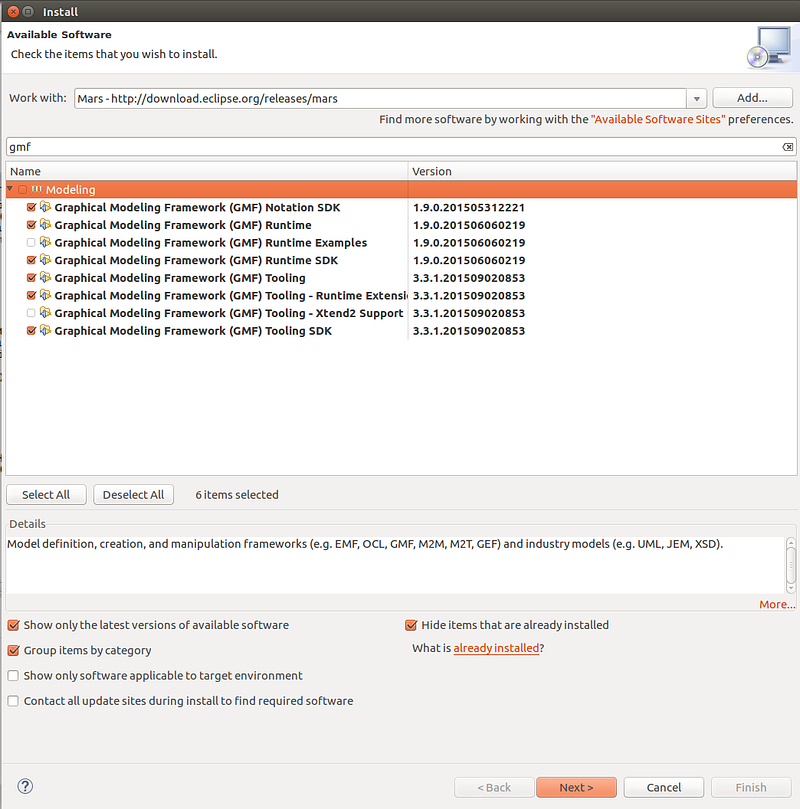
Once the platform bundles and the kernel are installed, go to the install window again, select Mars releases from the drop down menu in ‘Work with:’ and filter the software using the keyword GMF. 

Select all except runtime examples and Xtend2 support.


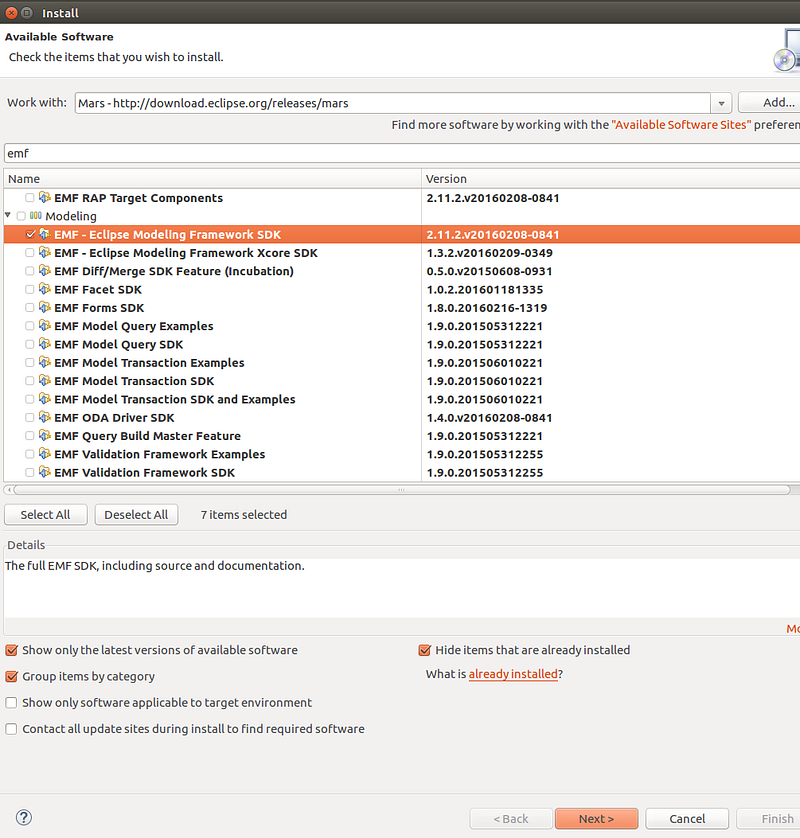
Filter the Mars releases again using keyword EMF and select EMF SDK. 

Install the GMF and EMF software.


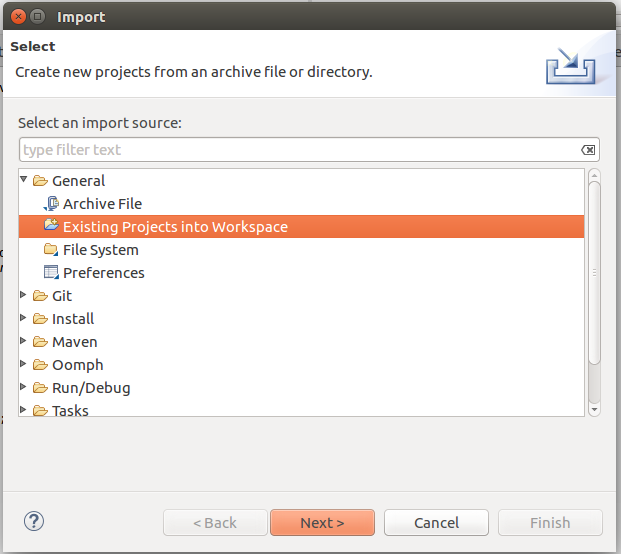
Fork and clone ESB tooling source code in the local machine and import (File->import) to Eclipse as an existing project.


Next PostNewer Posts Previous PostOlder Posts Home